Showing posts with label iPad. Show all posts

8/29/12

What's the right size for a tablet?


I originally wrote this way back in December of 2011, but it holds today.

***
With the advent of the Kindle Fire, rumors are starting to swirl that Apple will make a similarly sized iPad.  I hope this doesn't turn out to be true. If anything, I hope they go a little larger; here's why:

I have (and use for hours every day) an iPad 2, an iPhone 4S and a third generation Kindle (not the Fire).

The iPhone is always on me. I am of the generation that doesn't mind the belt holster look; it helps me recall my slide rule days. Honest to God, I used to wear a slide rule in a leather holster in the 7th grade. I have read that the average smart phone is rarely more than 5 feet away from the owner, and that is certainly true for me. With my new eyes, I can see it fine. And even though I have guitar playing fingernails, I generally type with a stylus. More and more, I am using Siri and the other voice input functions of the newest iPhone.


I carry the iPad around with me. I take it to lunch. I take it to bed with me. I evidently have a deep personal relationship with my iPad! But like virtually every other iPad user I have seen, I keep mine in a case that then folds open and props the iPad at various angles. So it's quite comfortable to use it sitting down or lying in bed. I take it to meetings and type (or handwrite) my notes on it.

The closest I can come to personal experience with the Kindle Fire is my Kindle ebook reader. It's actually smaller than the Fire, with a 6" screen. It's very light and compact. But interestingly. it is more work to hold it than to let the iPad rest on my lap. Still, I like it for two reasons: I actually read whole books rather than letting my ADHD get the better of me, and I can read it in bright sun.

But here's the thing: even this smaller unit is too big to stick in a pocket. And even if I could, I'd be worried about breaking it.

So I don't get the point of a 7" tablet. You sacrifice a lot of screen real estate and end up with a unit that you still need to carry around. Maybe if I used a purse, I could see the attraction of slipping it in there, but otherwise? Otherwise, I would use my iPhone. In a pinch I can read Kindle books and surf the web on my iPhone. It isn't ideal, but as they say, the best camera is the one you have on you. This is true for web activities as well. The best web device is the one you have on you. And in the iPhone's case, it's also the camera. It's a guitar tuner and metronome. It's a GPS.

So my vote would be for a 10 or 11 inch iPad. If you could do that and keep the weight close to the same then I would be thrilled. Magazines would look gorgeous. Videos would be better. I could put it on my music stand and display full pages of musical scores that I could actually read. None of that would be true with a 7" tablet, and yet it would be too big for a pocket.


Now I can foresee the day when flexible displays allow a unit to fold up like a book. In that case, if I could safely keep that in a rear pocket of the pants, by all means give me a 9 1/2 inch display that I can quickly open up. While we're at it, make it a phone in the closed position.

Better still, and inevitable, will be the contact lens screen. But for the time being, if I have to carry it I'd rather have a bigger display.

8/20/12

CardMunch - Wow, well done LinkedIn!

I have tried a number of business card scanners, from the old USB jobs that actually scanned your cards to the iPhone apps that work off of pictures. Each of these was way more work than they were worth. Business cards are odd things in their design. So optical character recognition can only go so far.

But LinkedIn has paired man and machine into a crowdsourced miracle with their app CardMunch. Just like the other apps, you take a picture of a business card. But then you upload it. A few minutes later, you get a delightful little apple munching sound that accompanies the notification that your card has been processed.

What did the app do? Well, it sent your picture to India, where somebody keystroked it in (no doubt using some OCR preprocessing). So far, out of nearly 1,000 business cards, I have yet to see a mistake. Better still, if the card is from someone with a LinkedIn profile, you get all of that profile information added to your contacts. The new card is available in LinkedIn, on your phone app or is uploadable into contacts.

How much does the app cost? Nothing. How much does the keystroking cost? Nothing.

I'm not naive. I know that LinkedIn is developing an incredible database off of my information. I am an IT executive, so the cards I send in have high potential value as probable decision makers. But that's ok with me; the whole idea behind business cards is to get your information out to the public.

7/25/11

Guitar Study, Enhanced by Technology (part 1)

Using technology to help learn to play the guitar (or any instrument)


I tend to take a technological approach to everything I can. When I taught myself German, for example, it was a lot of DVDs, Internet tutors, flashcard programs, German pop MP3s, etc. And so it is with my study of the classical guitar. The instrument itself hasn't changed in a few hundred years (longer if you count earlier guitar-like instruments). In fact, one of the things I like about classical guitar is its standalone nature. In a power outage, I can be a completely happy camper.

But technology can be extremely useful. The only danger one must guard against is spending more time fiddling with technology than practicing! Lord knows I've spent 100 hours automating a 2 hour job. But with that caveat in mind, here are a few tools I've been using.

Video Recording


I sometimes play in public open stages or student recitals. And the nerves that accompany such an event can wreak havoc on my playing. Also, as my teacher has pointed out to me, I make a very unhappy face when I am playing. It looks like I am undergoing some unpleasant medical procedure. It feels that way too!

So video recording can serve a number of useful purposes. First, it somewhat simulates an audience. You get some measure of performance anxiety in trying to make a good, single pass recording. This is also true for audio recordings, and especially true if you post any of these recordings on-line.

Second, videoing yourself lets you see your facial expression. It lets you check your posture, and it lets you watch the movement of your fingers. I have some bad right hand mechanics that I need to work on, and the first step, as the saying goes, is awareness of the problem. For example, here's me playing a piece and trying not to grimace. But in thinking about my face, I let my right hand go at some weird angles.


And yes, that's about as happy a face as I make while playing. I do really need to work on that.

Videos can also give you a history of your playing, and that can help with encouragement. Progress can be so incremental, you may miss it. So it's illuminating to see yourself two or three years ago, and see how much progress you've made since then.

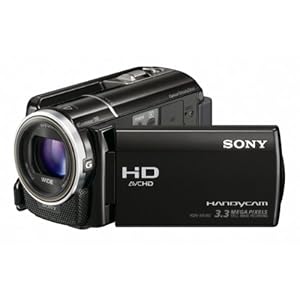
You can use a cheap webcam or frankly even your iPhone or iPad 2 for the purpose. But I had the excuse of new grandchildren to get a Sony HD Handycam. If I were so inclined, I could attach a better microphone to it, but the main interest I have is in the visuals.

Audio Recording


Many of the same advantages can be had with audio recording, but it's even easier to do. Although that being said, if you want a professional sounding recording, that's a hobby and skill in and of itself. But for the casual recording, there are a lot of options to use and value to be derived.

I own and used to use an M-Audio Microtrack 24/96 portable digital recorder. It's about the size of a pack of playing cards and does a fine job (although the battery life is disappointing).

But ever since going down the Apple fanboy rabbit hole, I am using either an iPod or iPad to do my recordings. I'll record lessons. I'll record practice sessions.

For these purposes, the iPad or iPod built-in microphone does an adequate job. But I will also sometimes plug in a thumbtack mic. If I were so inclined, I could probably use the media or camera connection kit to connect my iPad to a firebox mic preamp, but that would put me in the spending too much time fiddling (ha!) with technology rather than playing the guitar. The idea is to record a lot, and the best way to do that is to make it simple.

There are a great many recording applications for the iPad. If I am interested in taking some notes while I am recording (such as in a lesson). I will use Notability.  For better recording and quality options, I will use Audio Memos 2. Both of these apps make it easy to get your recordings up to Dropbox or sent via email, so if you want to post them somewhere, it's simple to do.

Internet Resources


Again, the danger of the internet as a distraction to practice can't be overstated. Ideally, you should have a practice area that does not have a PC! But that's almost impossible now - the average lifetime distance that a smartphone spends away from its user is only 5 feet! So the internet is literally in my pocket at almost all times.

But there are a few gems on the internet, both for general music as well as specifically for the classical guitar.

Musictheory.net


Musictheory.net is an outstanding resource for learning something about music theory. It has lessons, but more importantly for me it has "trainers". So if you are trying to learn to hear intervals, fire up the interval trainer and find out how well you can distinguish a 5th from a 7th. I also use the key signature trainer.

Delcamp


Specific to the classical guitar only, the Delcamp Forums are run by Jean-François Delcamp in France. The forum language is English, but there are active members from all over the world. This is the most civil internet forum I have ever seen. You can ask a question, give an answer, read the wisdom of others, post and listen to audio and video recordings (so long as they adhere to international copyright law; I couldn't post my Andrew York piece above). In addition, there is a library arranged by grades (1-10) of guitar music. These are extremely well typeset PDFs - thousands of pages worth. Mr. Delcamp is offering lessons on his site as well.

Acoustic Guitar Magazine


ACG also hosts some discussion forums, although their classical corner is a much lower volume place than Delcamp. It also tends to be a little more raucous. I read it, but have stopped participating because (a) I hate the forum software they use and (b) I signed up under an email account I no longer possess, so can't have the forgotten password emailed to me!

The Boije Collection


The Boije Collection is another fine library of digitized classical guitar music scores.

Youtube


Youtube certainly causes concern from a copyright permissions basis. But overlook the stolen material (and buy it from the artist, otherwise artists will stop producing!). Instead, look for high quality amateur performances of the pieces you are learning. I am currently learning Robert Johnson's Allmayne, and a fellow that goes by the moniker gutfrets posted a very nice lute rendition.

next up in part 2, software and apps for guitar study

7/12/11

iPad App Review: Note taking (typed)

I saw another blogger review note taking apps, and I liked his approach. He used each app for a few hours at a time, taking notes at a conference and seeing how well the app supported him. He had different needs than I do, so he came up with different answers.

Earlier I reviewed handwriting apps and have picked Upad for my personal use. But when I want better notes, searchable notes, and notes that I might want to clean-up into “real” documents, I have a new need, one for typed text support.

And so I am using my application of choice (at least until the experiment is over!) to write this article. Let’s see how much I can do, how well I can format, and how easily I can transfer it to my website.

First things first – I am using an apple keyboard. I play the classical guitar, so my right fingernails are long and polished and very important to me. My left fingernails look like wolverines have gnawed them down. And my left fingertips are calloused. So while typing on the iPad’s on-screen keyboard is possible, it’s really rather difficult for me.

I just tried a case with an integrated bluetooth keyboard. GREAT idea, lousy implementation. The space bar on this model is so deeply recessed you cannot hit it with your thumb. I’ll write a review on accessories shortly.

So for now, it’s either take a keyboard with me to meetings or deal with the on-screen keyboard. For the latter, I won’t be typing very lengthy notes.

OK, so what am I looking for in a Note Taking app?

  • it needs to quickly load and allow me to start typing notes within seconds

  • I need some formatting options, but the app should really be minimilist to let me pound text in. I'll use Word or Pages if I want to create a pretty document

  • searching and organizing are key. I want to be able to have notes in notebooks and notebooks be able to be nested. I want to be able to tag items.

  • The app should favor text input, but allow for drawing and handwriting

  • The app should be able to import a variety of file types, and export to plain text, RTF, PDF, and files stored should adhere to some relatively open standard (plain text, HTML, OPML, Markdown).

  • Syncing and backing up (to dropbox, ideally) are critically important.

  • Cut and paste graphics would be nice to have

There are a lot of these applications on the market, and more coming on-line every day. So in my “pick one diet” vein, I tried a bunch of these for a little bit of time, before deciding on a winner. In the next week or so I will confirm my selection and start using this app exclusively.

My initial test was trying to get ready for a trip to Italy and organizing an itinerary. I then took notes during the trip. So I was initially looking at apps that were primarily outliners. And I really like doing brainstorming and document prep in outline mode. But in the end, I found that I was spending too much time futzing around with outline levels and formatting.

The Contenders


Daily Notes + To Do 


This has been my most often used iPad app. I do not use the to do features, and they thoughtfully allow you to turn that off. It's a great journaling program. You can have as many tabs as you want, as many pages per tab. Each page is tied to a date, so it is not ideal for organizing your notes in other ways (although it does allow tagging). It has dropbox "backup" (so you have to remember to press that button from time to time) and very limited formatting. It is what I ended up using for my travel itinerary and diary, and I think that I will keep this program for that use. But for going to a meeting or a conference or some other event that you just want to take notes with, it's lacking. And no export to PDF, so what you have is limited to iPad production and consumption.

OmniOutliner


Ludicrously expensive for what it does. Good outlining, but I could not easily create this post using Omni. No Dropbox sync. Worst of all, occasionally get an "omnibase" error.

carbonfin outliner


If outlining is what you want, this is a better and far less expensive version than Omni

Notability

I want to like this app. There is inherently nothing wrong with it. It's main distinguishing feature is the ability to record audio and have that synched to where you've typed notes. So for a student, that could be great. Although as a student, I found recording to be a crutch that made note taking worse. I've used Notability for recording guitar lessons and making notes, but in the end I pretty much stopped using it. They just released a new version that gives you multiple fonts per "note". I suppose it's the note aspect that bothers me the most. You can type a very long note, and the note can be part of a category, but it just seems more geared to index card kind of note taking, rather than free-flowing. Good dropbox, webDav and other support though.

Awesome Note

Even worse with the notecard metaphor. One of those apps that does "everything but nothing well." Great sync to google docs and evernote, though, so as an iPad post-it pad, it does indeed seem awesome. But then again, evernote has its own app which is just fine for that purpose.

Thinkbook

This is a very interesting design and does a tremendous job of outlining. The developer has come up with a "slider" that you can toss lines and paragraphs and other content into and out of and can move sections quickly. While I love being able to expand and collapse sections, it seems impossible to get Thinkbook out of outline view and just display all text expanded.

But the clear winner is:

Notebooks

I wish I could give you a more detailed name. App developers need to learn something about branding. Even their help files and website just call it "Notebooks".

Anyway, that aside, Notebooks is exactly what I was looking for. I have typed this review in it and will shortly go back to add formatting and pictures, then export to HTML and email it for posting on my blog (or maybe do that all through the pasteboard).

Notebooks allows you to create nested notebooks. Within a notebook, you can have another notebook, a note, an image, or an imported document. You can make notes tasks.

Notes in Notebooks are typed on a lined sheet and as far as you're concerned, you're just typing on a very long sheet that keeps scrolling. The files are saved continuously, so as you bounce around within the program or out to other apps, the last thing you typed is always there.

There are so many features that this app comes with a downloadable 40 page user manual. But at the same time, you can start using it immediately.

So to give you an idea of how I use this app, I have a set of notebooks. One book is "data center" and when I have weekly emails with leasing reports, I open those in Notebooks and they automatically become a read-only note. So far, no problem with Excel, Word, or PDFs. The only thing I wish I could do is annotate these files (either with handwriting or typing on say a new layer). For all I know it has that capability and I just haven't figured it out yet. And even now, I can "open with..." quickdocs and edit (although due to the architecture of iPad those changes don't get saved back to notebook).

Files are saved as text and while there is not a PC or Mac version yet (although it sounds like they might be planning one), there are other options. For me, should I need to clean up and format a notebook, I'd just send it to Word as an HTML document.

Searching is very powerful in this app, and that's a critical function. I can now see that I will use this exclusively for typed notes for all sorts of things and for many years. So the amount of notes I will have will number in the thousands.

Notebooks anticipates this with tools to combine notes, notebooks and to zip everything up as well.

7/10/11

App review: Note taking (hand)

The Need


In an earlier post I said apps are like knives and that you should think about the balance between specialty function (say a fish boning knife) versus the sort of general utility offered by a Swiss army knife.

And as I come to my first category of review, note taking, I realize that I have been struggling with just this question. I find myself with two distinct needs when I take notes, and so I have two subcategories, handwritten versus typed. This first review is for the handwritten kind.

Prior to the iPad (and really, up until a few weeks ago), my office habits would have me grab a legal pad and take it to meetings. I have beautiful leather binders and portfolios. I have specialty paper from Levenger. The problem arises in that I have all of this paper scattered. I'll just grab whatever pad or portfolio happens to be closest. I am not good at filing paper. And most of these notes aren't really worth the trouble of filing.

Typing on the iPad isn't so great for meetings. Plus, I always like to draw diagrams. Handwriting apps come to the rescue.

Key Features

  • The app should load quickly and be ready to accept notes within seconds

  • The app should have an easy and obvious interface. There can be a lot of powerful features, and that's fine, but the basics of writing and drawing need to be very simple

  • There has to be app stability, of course

  • And it has to offer rich backup and syncing utilities such as dropbox, email, iTunes document sharing

  • I want my handwriting app to favor handwriting, but to allow typing

  • I need to be able to organize notes into books, and I need to be able to store thousands of them

  • I want to be able to send my notes as image or PDF files

  • And I want to be able to input PDF's and mark those up.

  • I don't expect a quality app for free, but less than $10 would be nice

  • Undo, redo to multiple levels

  • Smooth writing with or without a stylus

  • Ability to zoom so my writing can be reasonably compact on the page

The Contenders


 UYH (Use Your Handwriting)


Penultimate


(now that Penultimate integrates with Evernote, I may need to take another look at it)
Note Taker HD


UPAD


And the winner is...

UPad, "hands down". Note Taker HD is more popular among the student crowd. Note Taker HD has a lot of extra functionality, such as drag and drop shapes. But I need to pick one diet and stick to it, and for me it's UPad. UPad does a wonderful job of:


so here's an app that does exactly what I need it to do and no more. It will truly replace all my little legal pads and other paper. UPad doesn't come with much in the way of help files or videos, but that's fine - it's quite intuitive. And the ability to zoom in and write neatly on forms could be quite useful to my salesforce at work.